


Cart is empty


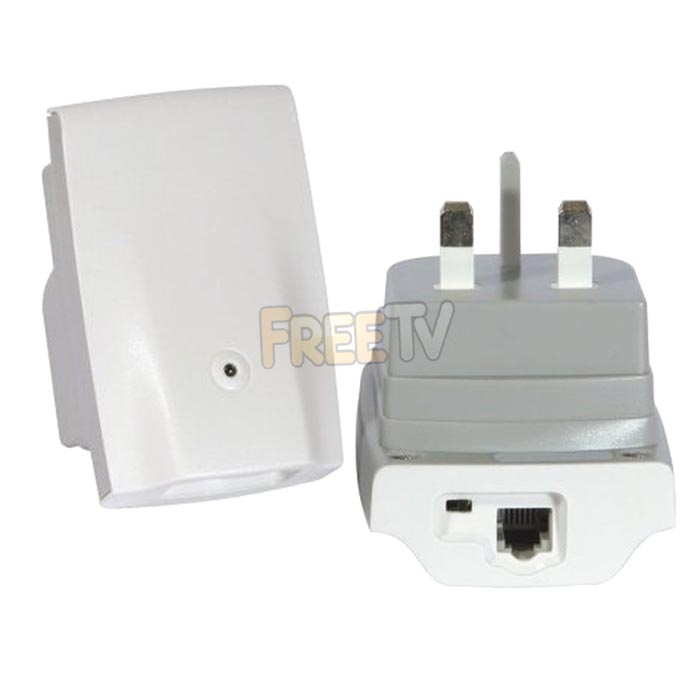

DESCRIPTION of RTX Wireless Phone Jack
- Wireless Phone Jack Extension Unit
- Products consists of
- Extension unit (qty: 1)
- Cable with RJ11 Connectors (qty:1)
- RJ45 to RJ11 Adpators (qty: 1)
- Manufacturer: RTX
- Range: 50m
- Connector Type: RJ11
- Colour: White
- Suits Irish and UK market
- Note: Must be used in conjunction with RTX Base unit
USES of RTX Wireless Phone Jack
- To wirelessly connect sky boxes (up to 4) to the phone line
- Phone, Fax, modem, VoIP adpator
ADVANATAGES of RTX Wireless Phone Jack
- Excellent reliable product that works well
- Very neat way of connecting the phone when there is no nearby phone line
- Plug and play - install in less than 1 minute
- Base and extension unit come pre-paired
- Easy to Pair additional units to the base (up to 4)
- Works well with voice and data
DISADVANATAGES of RTX Wireless Phone Jack
- Cost - much more expensive than simply running a telephone cable
- Not suitable to run broadband
- Always possibility that 2 wireless systems could interfere with each other (never had an issue to date with this product).
Index
1. Overview of RTX Wireless Phone Senders
- What is a wireless phone sender
- Why use a wireless phone sender
- Why use an RTX phone sender
2. How to Install a RTX Wireless Phone sender
- Marry all the units together
- Connect base unit into the phone line
- Connect the extension unit to the Sky boxes
- Marry additional units to the base unit
3. How to De-marry an Extension Unit From a Base Unit
------------------------------------------------------------
1. Overview of RTX Wireless Phone Senders
1.1 What is a wireless phone sender?
- Allows a phone signal (data or voice) to be beamed wirelessly from a base unit to an extension unit
- Works with Sky boxes, phones, answering machines, PC modems or fax machines
1.2 Why use a wireless phone sender?
- To give a phone connection to a Sky multi-room box that is difficult or impossible to neatly connect to a phone point by running a telephone cable (normal method)
- For temporary phone connections ie.. Sky user is in rented accommodation and will soon be moving. Simply plug out extenders and plug back in at new location
1.3 Which wireless phone sender to use?
- We would recommend the RTX wireless phone senders because
- It is the best product that we have tested in terms of cost and reliability.
- Also you can add up to 4 additional RTX wireless phone jack extension units from a single base unit
2. How To Install a Wireless Phone Sender
Shown above is an overview of how you would install a wireless phone sender and marry a number of additional extension units. The example is based on a Sky multi-room install where 2 or more satellite boxes are connected to the phone line using the RTX units.
2.1 Marry all the units together
- The base unit and extension unit in the blister pack are already married so they are ready to plug and play
- Make sure the switch on all extension units are set to 'C' and not to 's'
- Marry all additional extension units to the base unit by:
- Connect the additional extension unit to the base unit using a telephone cable (use either socket on the base unit)
- DO NOT connect the base unit to the telephone line
- Plug both the base and extension unit into the power socket.
- Wait 5-10 seconds and the extension unit light will go from flashing green/red to green
- The units have now been paired - repeat step 1-4 for each additional unit (max of 4 extensions per base unit)
******** ALL THE PHONES UNITS ARE NOW MARRIED ********
2.2 Connect base unit into the phone line
- Plug the base unit into an electrical socket next to the main phone point
- Connect a phone cable from the base unit into the phone socket
- Connect the other phone cable from the base unit to the phone
2.3 Connect the extension unit to the Sky boxes
- Plug the extension unit into an electrical socket next to a Sky box - (LED light should be continuous green)
- Run a phone cable from the base unit into the Sky box
- Now turn on Sky box as normal
- Repeat steps 1-3 for each Sky box
** ALL BOXES SHOULD NOW HAVE A VALID PHONE CONNECTION**
2.4 Marry additional units to the base unit
- Plug out the master unit and the slave unit you want to marry it with
- Make sure the phone line is disconnected from the master unit
- Run the phone cable from either of the inputs on the master unit to the input on the slave unit
- Plug the 2 units (slave & master) in side by side to a double electrical socket
- Slave will originally be red but after about 20 seconds should turn green
- It is now paired off
Note: following "Light code" on extension unit when plugged in next to base unit
- Green: Means extension unit is successfully married to the base unit
- Red: Means extension unit is not married to any base unit
- Green/Red: Means the extension unit is not married to the accompanying base unit
3. How to De-marry an Extension Unit From a Base Unit
- Plug extension unit into power socket
- As soon as LED on the extension unit turns red, disconnect the power and wait for LED light to turn off
- Repeat steps 1-2, a total of 5 times and the extension unit will no longer be married to the base
No posts found
We aim to provide a fast, reliable & low cost delivery service
All orders we ship, leave our warehouse on time
- Standard Courier With Fastway (2-4 Working Days)
- Cost is €3.95 on Orders Below €100
- Free Delivery on Orders Above €100
- Express Courier (1-2 Working Days)
- With Fastway: Cost is €6.50 (or €2.50 extra if you qualify for free standard shipping)
- With DPD: Cost is €7 (or €3 extra if you qualify for free standard shipping)
- This service guarantees that any order placed before 4.30pm with Fastway or 3pm With DPD (Mon - Fri) will ship from our depot that same day on the express delivery service*
- *Orders placed after 4.30pm with Fastway or 3pm with DPD on Fridays & during weekends / bank holidays will be shipped the next working day
- An Post
- Cost is €2.50 (P & P)
- Available only on selected products with the An Post logo
- Small Parcels
- Cost is €3.50
- Available only on products with the small parcels logo**
- Great Britain
- Cost is €7.50
- Western Europe
- Cost is €10
- Belgium, France, Germany, Holland, Italy, Lithuania, Luxembourg, Spain, Portugal etc..
- Rest of Europe
- Cost is €20
- Croatia, Czech Republic, Estonia, Iceland, Malta, Slovenia, Switzerland, Norway, Sweden, Finland etc..
- Rest of World
- Cost is €30
- Please contact us before purchasing to confirm
Terms
- All shipping fee prices listed are ex-VAT @ 23%
- Irish shipping rates apply to the whole Island (North & South)
- Shipping fee is fixed for an order, regardless of the number of items bought
- All courier orders require signed proof of delivery and the customer must be contactable by phone
- We do not offer a weekend delivery service (Mon-Fri only excluding bank holidays)
- *Our courier achieves a 98% success rate on express deliveries
- ** Applies to island of Ireland only (North & South)
- Heavy or Large Parcels (Applies only to Non Irish or UK customers): It may be necessary to charge higher shipping fees / offer option to cancel order



